Open a PDF
Keep a copy of the original PDF
 GramProof™
Add text and highlights, rotate pages, and remove pages from a PDF.
PDF up to 20 MB and 100 pages. Add annotations, rotate pages, or remove unwanted pages. Existing text is preserved; this tool does not rewrite it.
or drag and drop a file here
File conversions and PDF edits run on your device. Device voices are provided by your browser or operating system.
A focused workspace for your own learning, research, and everyday projects.
Keep a copy of the original PDF
Use page navigation to find the right place
Place text or highlights by clicking the preview
Less friction between the material you have and the work you want to do.
Add text and highlights, rotate pages, and remove pages from a PDF.
Use the controls in the workspace to shape the result around your own task.
Review the output and keep a copy you can return to or share when ready.
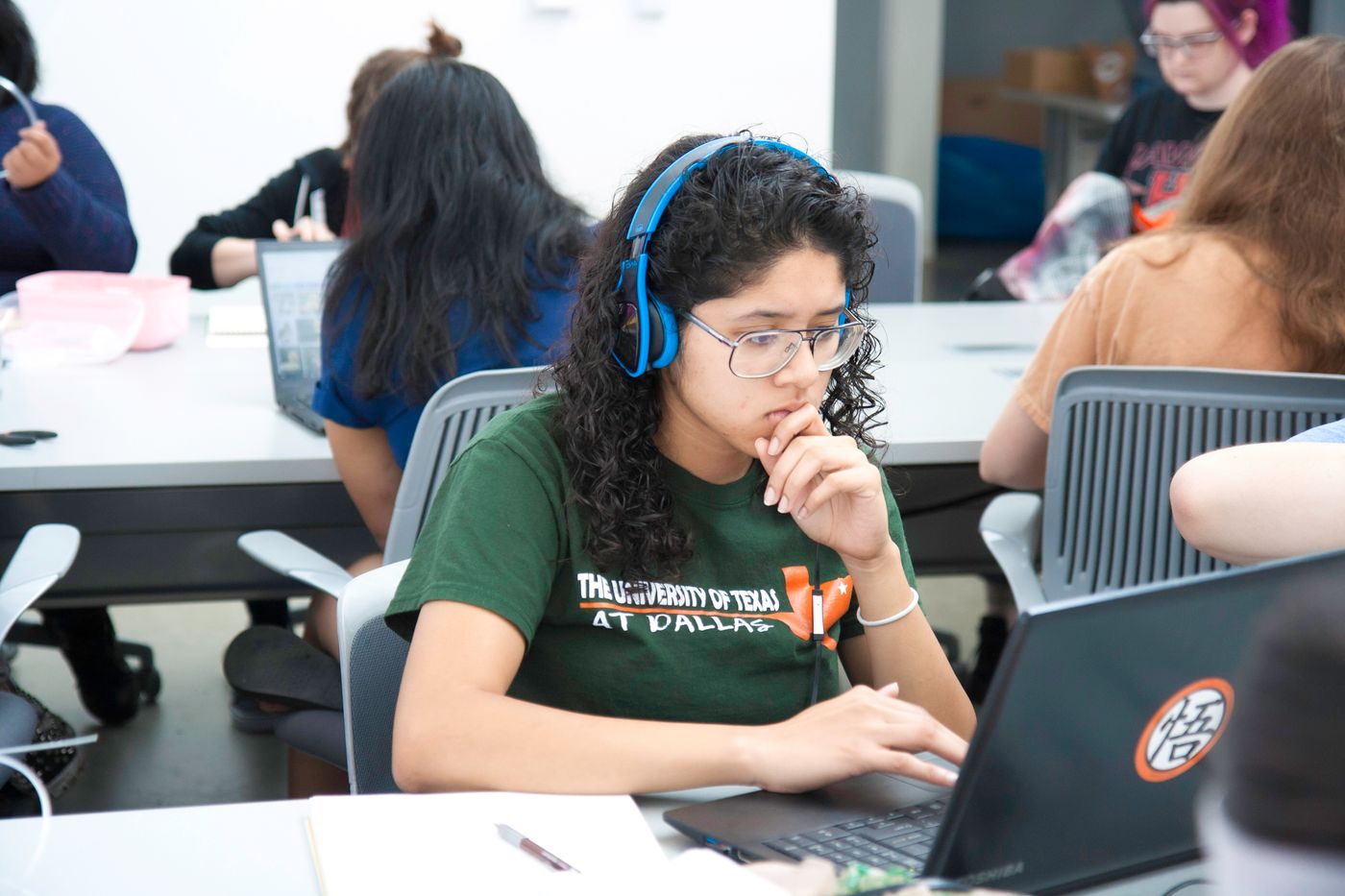
Start with clear material, keep your purpose in mind, and bring your own judgment to the result.
At home, on campus, or between projects, make room for a clearer next step.
Bring your own questions and materials to a workspace built for useful, reviewable results.

Bring your own questions and materials to a workspace built for useful, reviewable results.

Bring your own questions and materials to a workspace built for useful, reviewable results.

A little more clarity before you begin.
This editor adds text and highlight annotations and supports page rotation and removal. It preserves existing page content rather than rewriting it.
Choose Add text or Highlight area, enter text if needed, and click its location on the page preview. Use Undo last edit if you need to reverse it.
You can add annotations and organize pages in a scanned PDF. Its original text remains part of the scanned image.
Yes. Check text, facts, page references, and exported layouts against your original material before using or sharing the output.